
With Quil’s integration into CATS, recruiters can keep everything in one place without extra admin. Notes flow straight from Quil into your CATS database, giving you complete records without the manual updates.
Where the Notes Go
Once a meeting wraps up, Quil generates structured notes and pushes them into the Candidate’s record inside CATS. Recruiters don’t need to re-enter details; every conversation is already logged and easy to find.
Connecting Quil to CATS
There are two ways to connect Quil with your CATS account.
- CATS OAuth connection
- Connect via CATS API Key
We strongly recommend using the new CATS OAuth connection for a faster, more secure setup.
Option 1: Connect via CATS OAuth (Recommended)
- In Quil, go to Integrations.
- Select CATS (OAuth).
- You’ll be redirected to a secure CATS login page — log in with your CATS credentials.
- Approve the connection when prompted.
Your Quil and CATS accounts are securely linked and notes will start syncing automatically.
Option 2: Connect via CATS API Key (Legacy Method)
Note: We strongly recommend switching to CATS OAuth for improved security, stability, and future compatibility.
1. In CATS, go to Settings (gear icon, top right).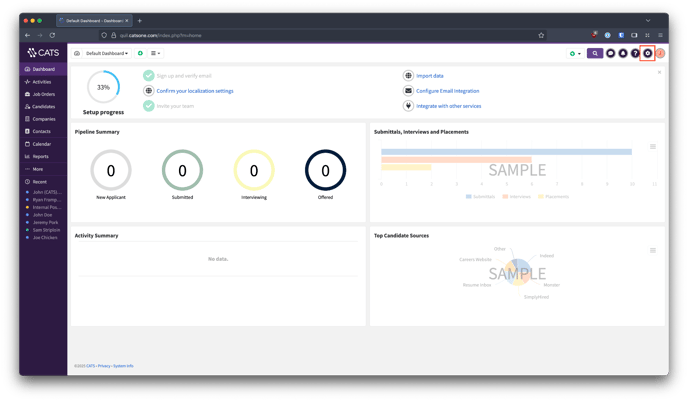
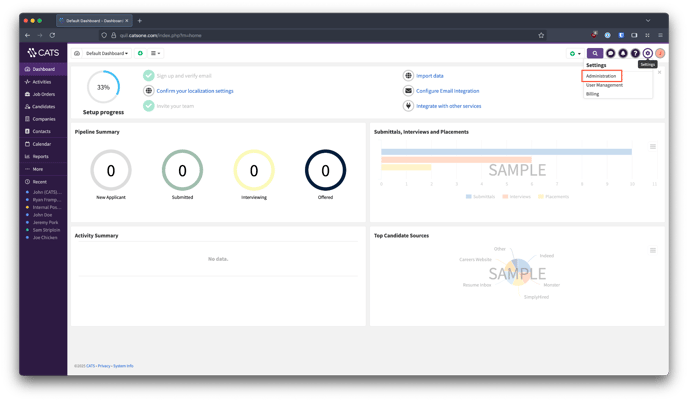
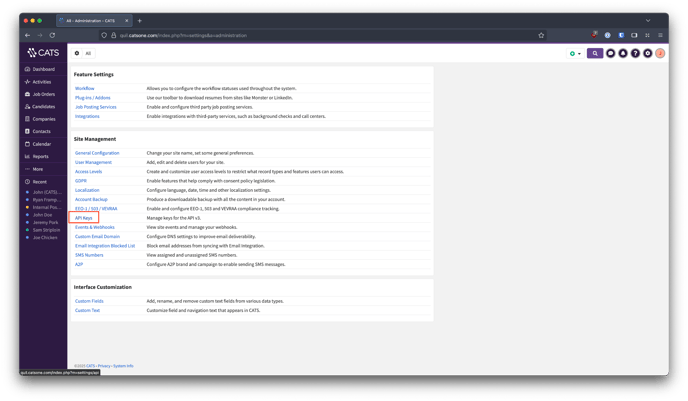
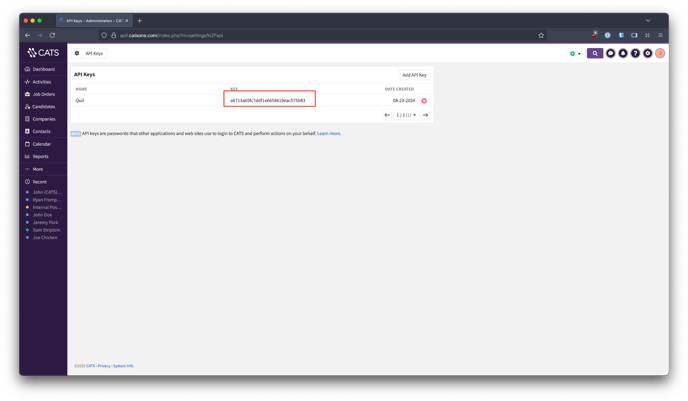
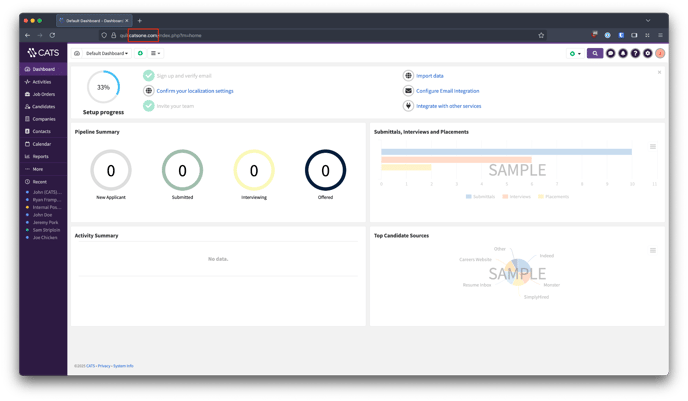
- If the URL contains catsone.com, select US.
- If the URL contains catsone.nl, select EU.
6. In Quil, go to “Integrations”.
7. Select CATS and paste in your API Key.
8. Choose your Region (US or EU).
That’s it, your accounts are linked, and notes will start syncing automatically.
Database Fields
Quil supports custom fields within CATS. Fields are pulled directly from your CATS instance, meaning any supported custom fields you’ve configured will automatically appear in Quil for updates.
Supported Features
| Database notes | ✅ |
| Chrome extension | ✅ |
| Candidate field updates | ✅ |
| Activity mapping | ❌ |
| Document uploads | ❌ |
If you require additional help, reach out to your main point of contact at Quil or email support at support@quil.ai.